
Screenshots
App details
- Version
- 1.09
- Size
- 23.64 MB
- Updated
- July 12, 2019
- Requires
- Windows 7
- Language
- English | German | Spanish | French | It...
- License
- Trial version
- Developer
- More programs (5)
- Category
- Windows OS
SoftPas in:
This product is also available in the following languages:
About Ocster 1 Click Backup
Download Ocster 1 Click Backup – Simple, Secure Windows Backup Tool
Overview
Ocster 1‑Click Backup is a lightweight Windows backup solution that turns the often‑daunting task of protecting your data into a single click. Designed for users who want a “set it and forget it” experience, the app lets you choose what files or folders to protect, where to store the backup, and how often the process should run – all from a clean, single‑pane interface. While power users may crave granular settings, Ocster focuses on clarity and speed, eliminating unnecessary wizards and dialogs. The result is a straightforward utility that reliably creates image‑based backups, logs each operation, and offers a one‑step restore process. Even though it does not bundle a rescue‑disk creator, the core backup engine is solid, free of adware, and updates automatically to stay compatible with the latest Windows releases. In short, if you’re looking for a hassle‑free way to safeguard your PC without diving into complex configurations, Ocster 1‑Click Backup delivers exactly that.
Key Features
- One‑Click Backup: Initiate a full or incremental backup with a single button press.
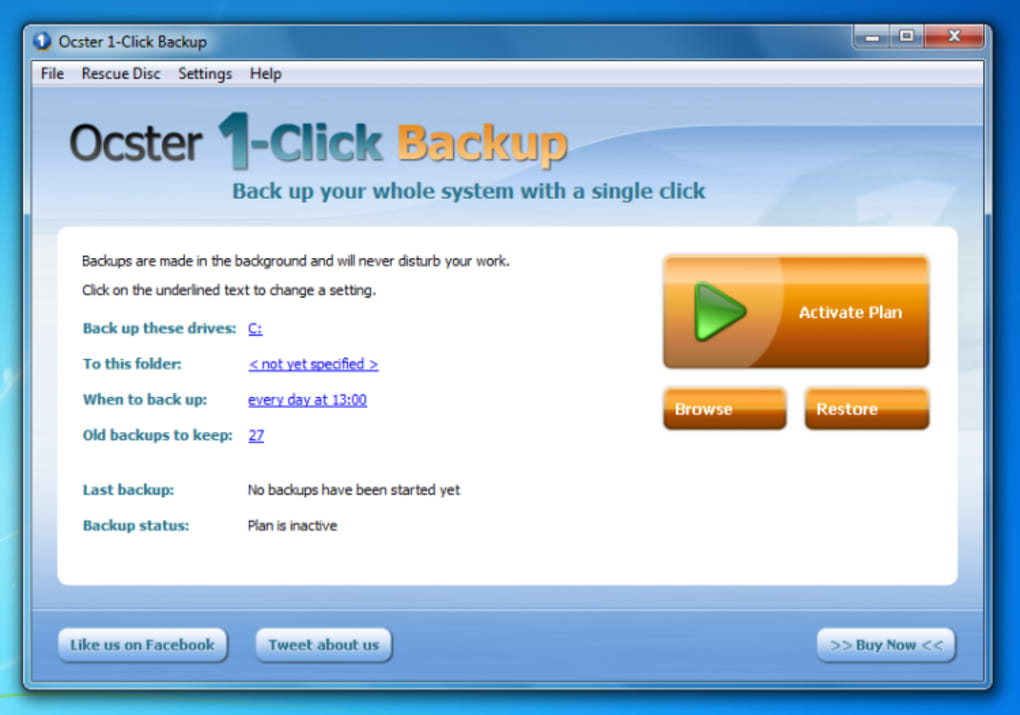
- Simple Interface: All essential controls, status indicators, and logs appear on the main screen.
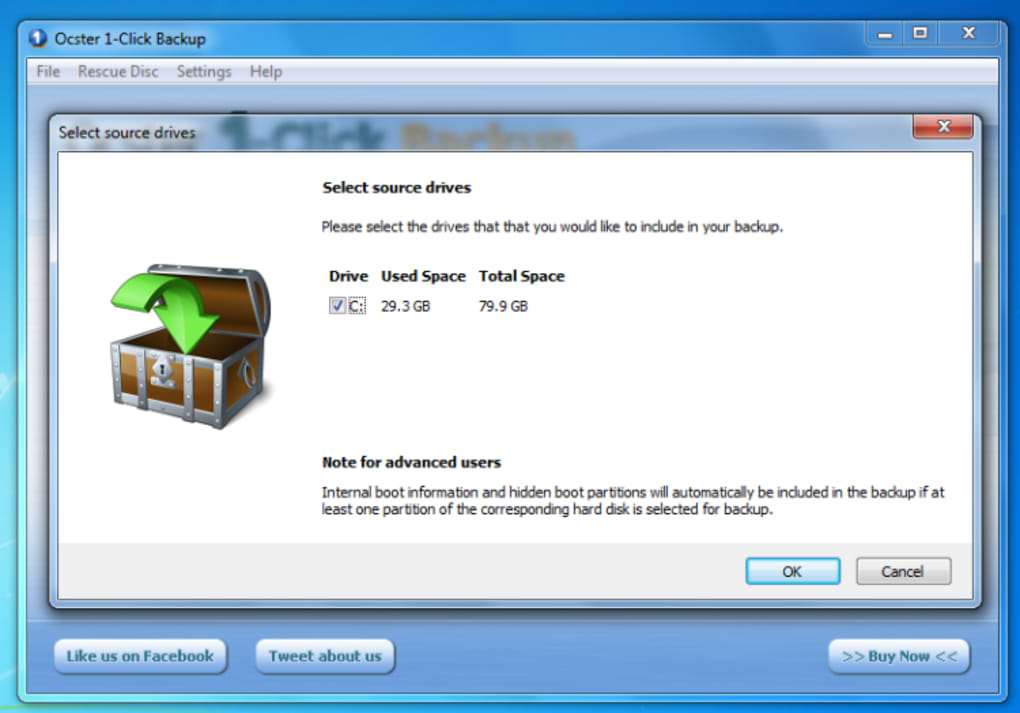
- Customizable Backup Targets: Choose files, folders, or entire drives to protect.
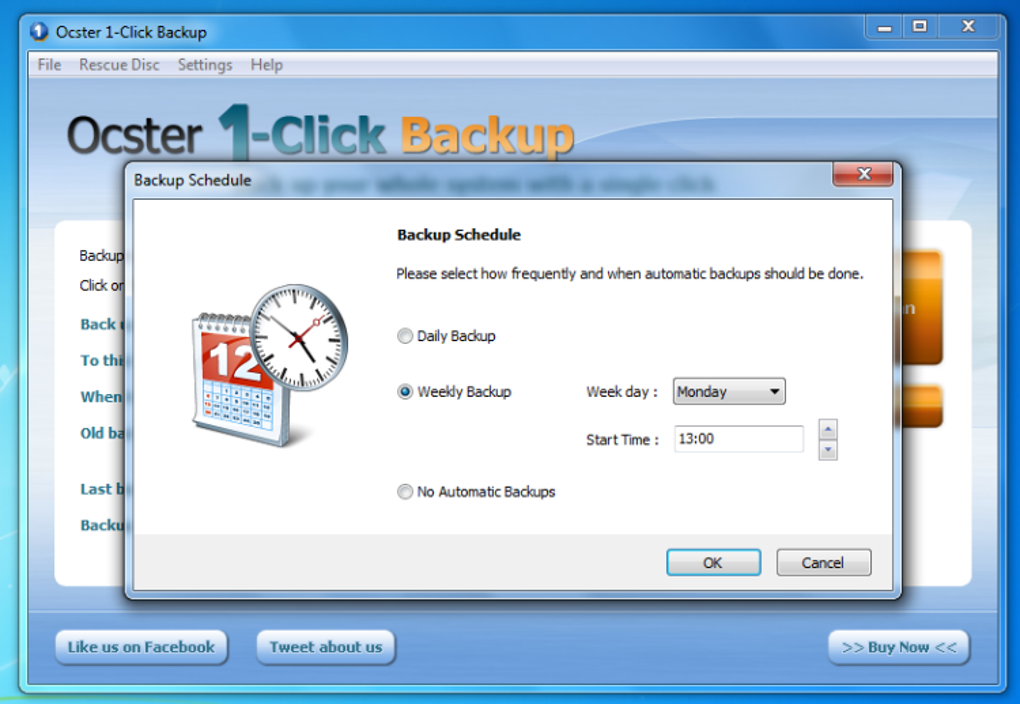
- Scheduled Backups: Set daily, weekly, or monthly intervals to automate protection.
- Secure Storage Options: Save backups locally, to external drives, or network locations.
- Restore Wizard: Quick restoration of individual files or whole system images.
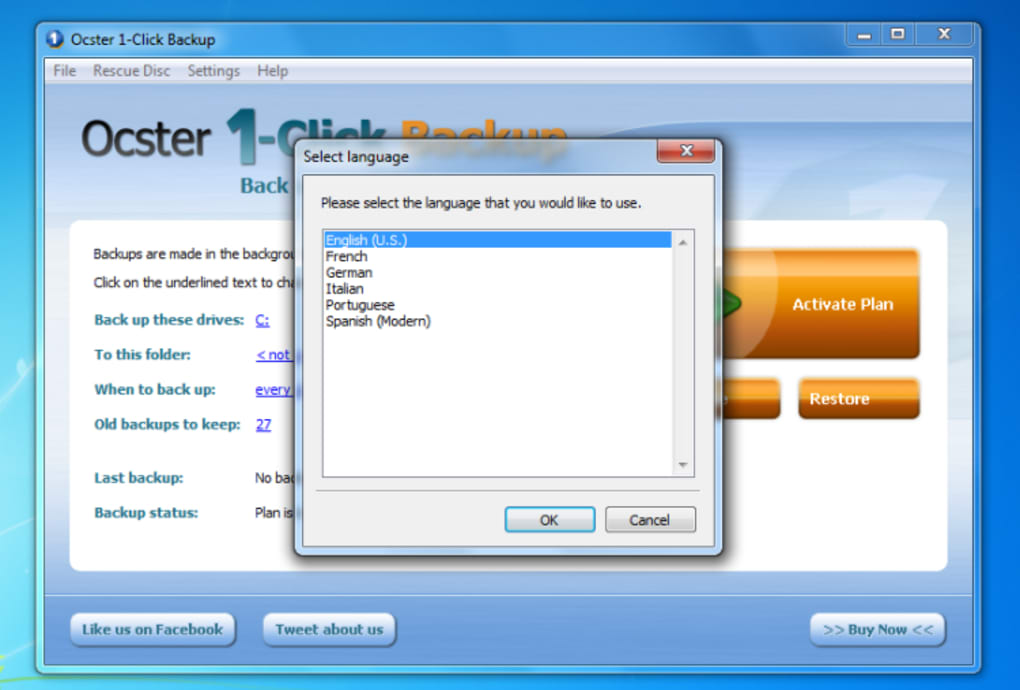
- Multilingual Support: Change the interface language from the settings menu.
- Automatic Updates: Keeps the software current with the latest Windows patches.
- Backup Log & Status Panel: Real‑time feedback on backup progress and any errors.
- Lightweight Footprint: Consumes minimal CPU and RAM during operation.
Installation & Usage Instructions
Getting started with Ocster 1‑Click Backup is as simple as the software itself. Follow these steps for a smooth setup:
Step 1 – Download the Installer
Visit the official Ocster website or a trusted software repository and click the Download button. The installer is a small .exe file, typically under 20 MB, making it quick to download even on slower connections.
Step 2 – Run the Installer
Double‑click the downloaded file. Windows will prompt for permission; click Yes** to allow the installer to make changes. The setup wizard walks you through a standard license agreement and destination folder selection. By default, the program installs to C:\Program Files\Ocster\1ClickBackup, but you can change this if desired.
Step 3 – Initial Configuration
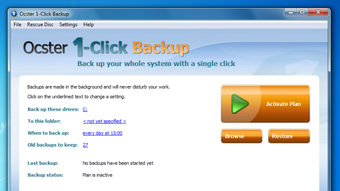
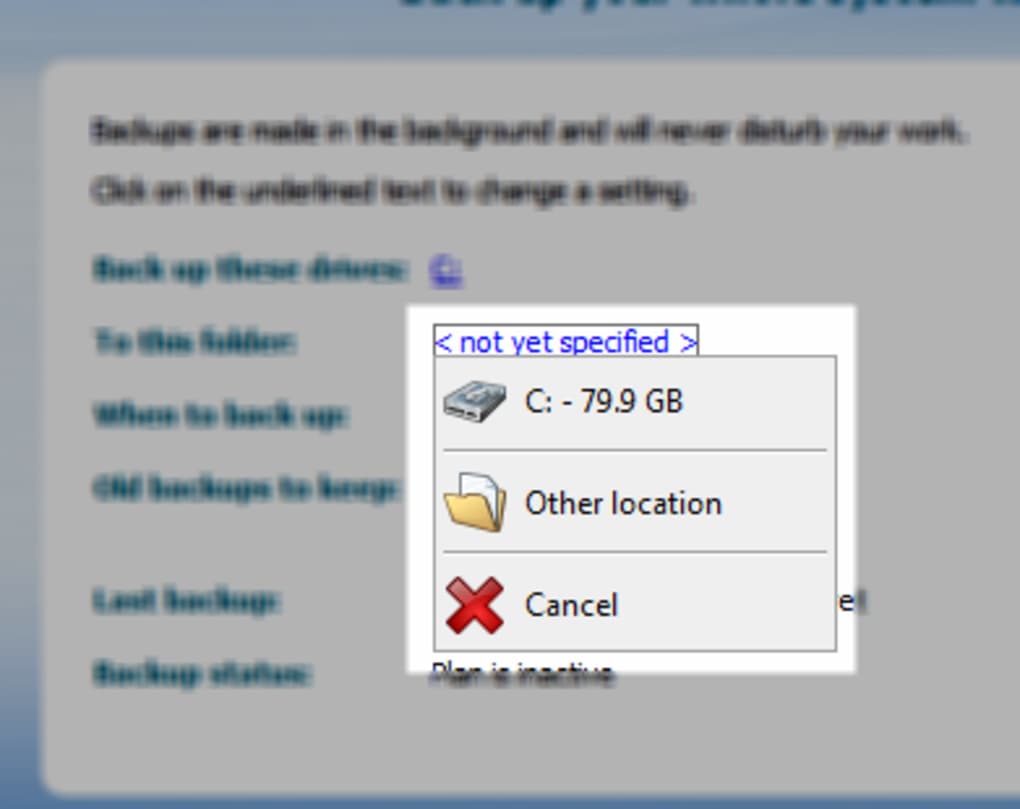
Upon first launch, the main window presents three clear sections: What to backup, Where to store, and When to run. Use the Browse button in the “What” area to select files or folders. In the “Where” panel, choose a local drive, external USB stick, or a network share. Finally, set the schedule – you can pick “Every day at 02:00 AM” for automatic protection.
Step 4 – Starting a Backup
Click the large Backup Now button. The progress bar appears at the bottom, and a log entry records the start time, selected items, and destination. Once finished, a green checkmark confirms success, and you can view the detailed log by clicking the Log tab.
Step 5 – Restoring Data
To recover files, open the Restore tab, locate the desired backup snapshot, and choose either “Restore All” or “Select Files”. The wizard will prompt you for a destination – you can overwrite the original location or pick a new folder.
Step 6 – Keeping the Software Updated
Ocster checks for updates automatically each time it starts. If a newer version is available, a discreet notification appears in the lower‑right corner. Click Update to download and install the latest patch without losing your settings.
Overall, the installation process takes under five minutes, and the day‑to‑day usage can be reduced to a single click, aligning perfectly with the product’s promise of simplicity.
Compatibility, Pros & Cons
Ocster 1‑Click Backup runs natively on Windows 7, 8, 8.1, 10, and 11 (both 32‑bit and 64‑bit editions). It does not support macOS, Linux, Android, or iOS, as the tool is specifically engineered for the Windows file system and VSS (Volume Shadow Copy Service) architecture.
Pros
- Extremely easy to set up – ideal for non‑technical users.
- Minimal system impact; runs silently in the background.
- Clear, centralized interface with real‑time status and logs.
- Supports local, external, and network backup destinations.
- Automatic updates keep the app secure and compatible.
- Free version offers full backup functionality without hidden fees.
Cons
- Lacks advanced options such as compression levels, encryption, or custom scripts.
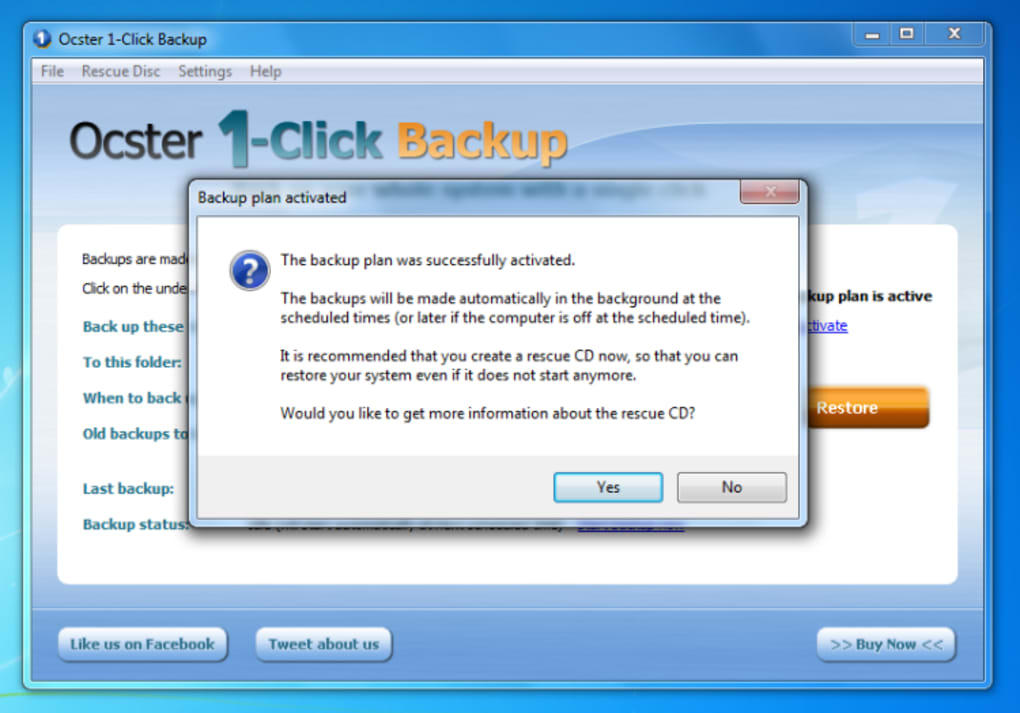
- No built‑in rescue‑disk creator – requires a separate download.
- Limited to Windows; no cross‑platform support.
- No cloud integration (e.g., OneDrive, Google Drive) out of the box.
- Scheduling is basic; no granular control over backup windows or throttling.
Frequently Asked Questions
Is Ocster 1‑Click Backup really free?
Yes, the core backup functionality is completely free. There is no hidden subscription or adware. A premium add‑on for rescue‑disk creation is offered separately, but it is optional.
Can I encrypt my backups with Ocster?
The free version does not include built‑in encryption. Users who need encrypted backups should consider third‑party tools or the paid version (if released) that may add this feature.
How does Ocster handle incremental backups?
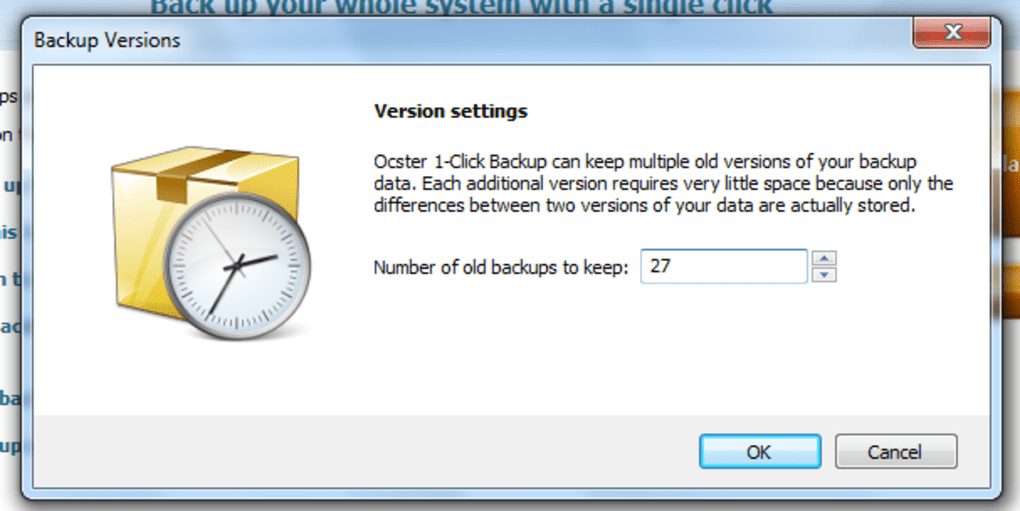
After the initial full backup, subsequent runs automatically detect changed files and back up only those, reducing storage usage and speeding up the process.
Do I need to keep the program installed to restore backups?
Yes, the restoration wizard is part of the application. However, you can copy the backup files to another PC, install Ocster there, and restore without issues.
Is there a way to back up to cloud storage?
Ocster 1‑Click Backup does not natively support cloud providers. Users can manually copy backup folders to services like OneDrive or Google Drive after each run, or use a separate sync tool.
Conclusion & Call to Action
Ocster 1‑Click Backup lives up to its name by delivering a no‑frills, dependable backup experience for Windows PCs. Its strength lies in the clean UI, single‑click operation, and reliable scheduling—all without demanding technical expertise. While power users may miss features such as encryption, compression, or native cloud integration, the free version covers the essentials for everyday data protection. If you’re looking to safeguard documents, photos, or even entire system images without wrestling with complex settings, give Ocster a try today.
Ready to secure your Windows PC? Download Ocster 1 Click Backup now and enjoy peace of mind with just one click.
Guides & Tutorials
How to install Ocster 1 Click Backup
- Click the Download button above.
- Once redirected, accept the terms and click Install.
- Wait for the Ocster 1 Click Backup download to finish on your device.
How to use Ocster 1 Click Backup
This software is primarily used for its core features described above. Open the app after installation to explore its capabilities.
User Reviews
No reviews yet. Be the first to share your experience.
You may also like
more
Llama 2
Free-to-use large language model As the new addition to Meta’s arsenal of langua...

NotebookLM
Revolutionizing the note-taking and idea-generation process NotebookLM is an exp...

Github co pilot
AI-inspired software development and coding platform GitHub Copilot is a browser...

Google Gemma
Google’s lightweight AI models Introducing Google Gemma , a family of cutting-ed...

AI Image Enlarger
A free app for Windows, by ai-image-larger. AI Image Enlarger is a free software...

DALL E
AI-driven text-to-image transformation engine DALL·E is a free graphic and desig...